
How to change your store's background color
-
Go to Website > Appearance
-
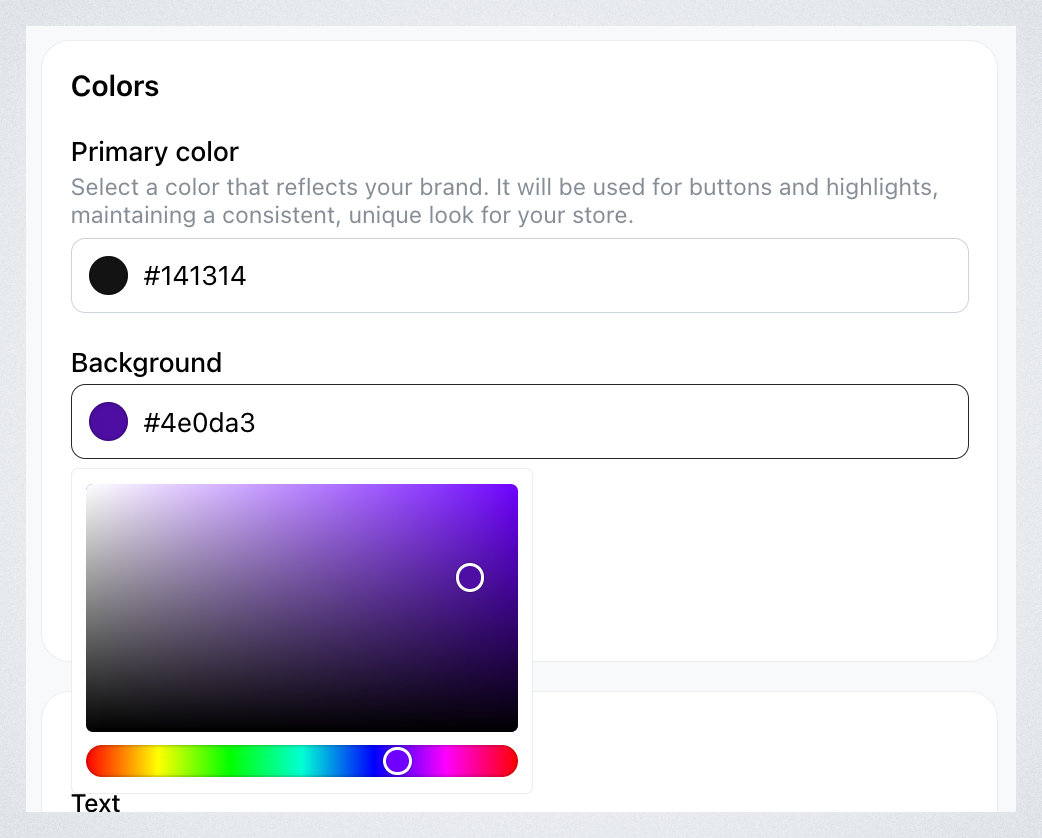
Scroll down to Colors section, click Background color and select the color you want.
-
Click Save.
How to change your store's background image
-
Go to Design > Appearance
-
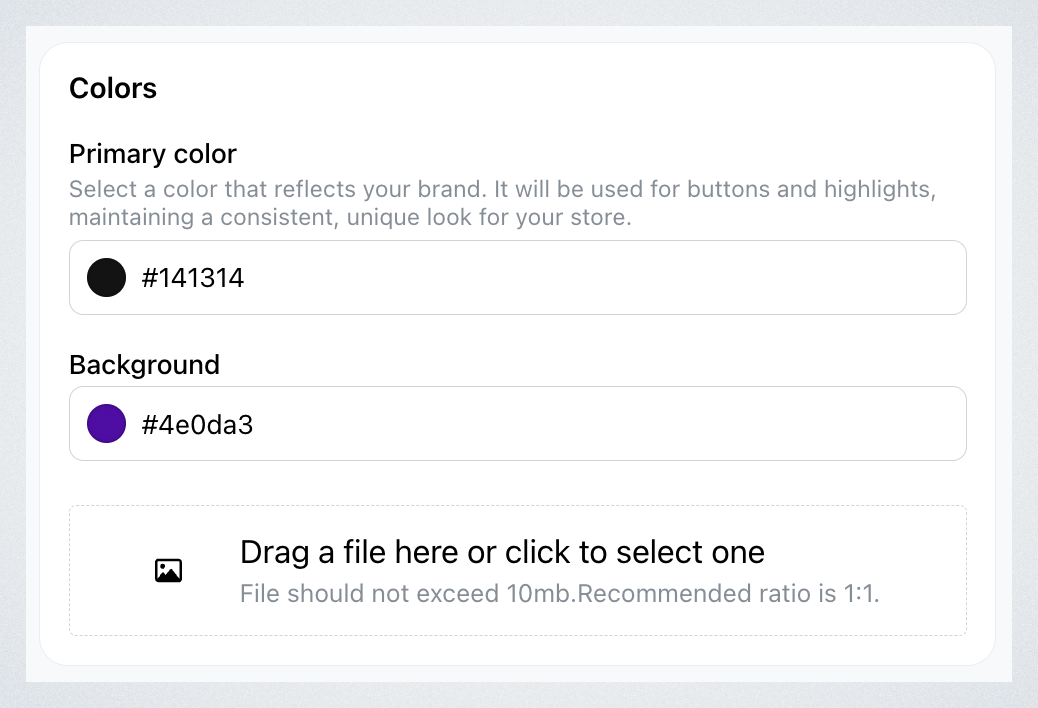
Scroll down to Colors section, and drag your image or select the one you want.
-
Click Save.
Your store's background will be updated accordingly:

How backgrounds display on your storefront
Recent improvements have been made to how backgrounds render on your storefront:
- Background color only: The colored area now takes up the minimum required height. Customers no longer need to scroll past a large color block before reaching your store content.
- Narrow horizontal image: If your background image is horizontally narrow, the entire image is now displayed without cropping, resulting in a more compact and cleaner storefront layout.