
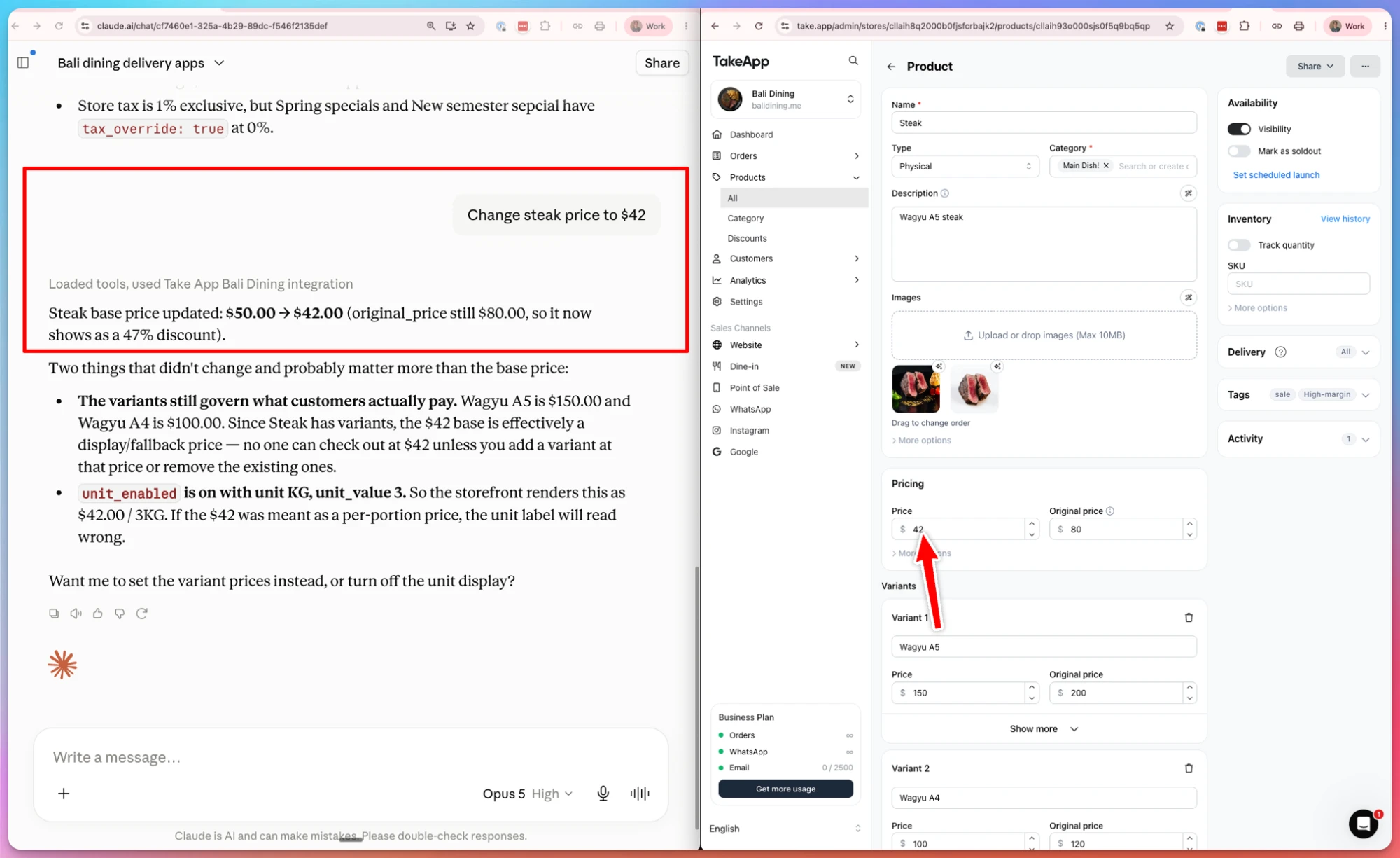
You can connect your Take App store to Claude or ChatGPT using MCP (Model Context Protocol). Once connected, the AI can read and manage your store directly from a chat — Claude can list and edit your products, import products, and export orders for you.
What you can do
- List and edit products — ask Claude to update prices, descriptions, and other product details.
- Import products — for example: "Read the products on example.com and import them into my Take App store."
- Export orders — for example: "Export my Take App orders from last month into a Google Sheet."
Where to find it
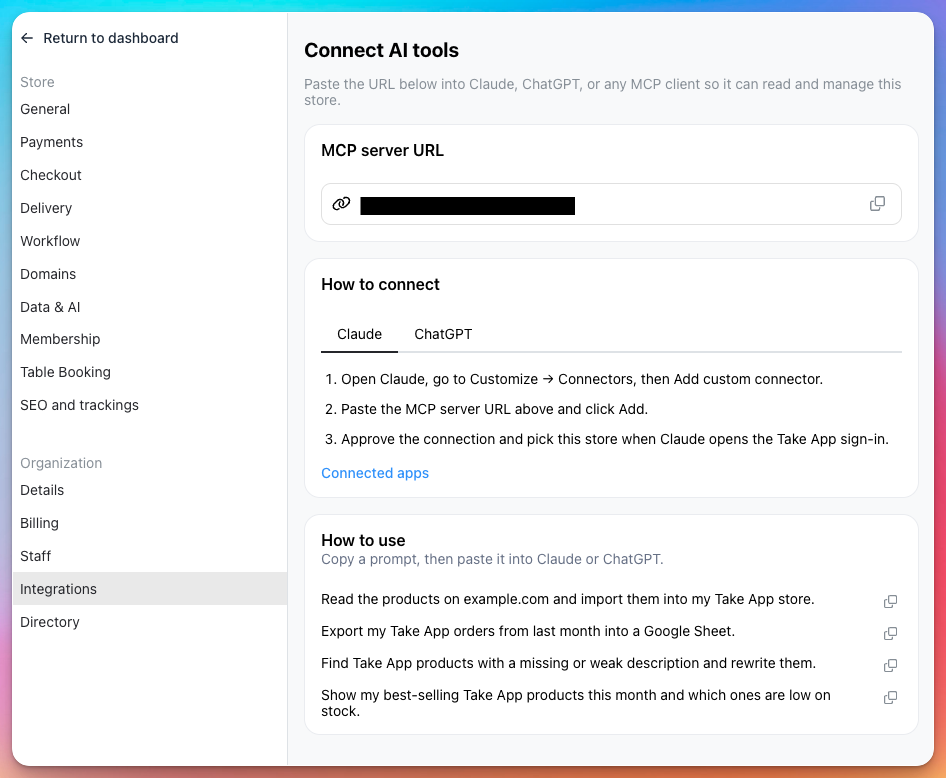
Go to Settings > Integrations and select MCP, then choose Claude or ChatGPT. The page shows your MCP server URL and step-by-step instructions to connect.
Connect Claude
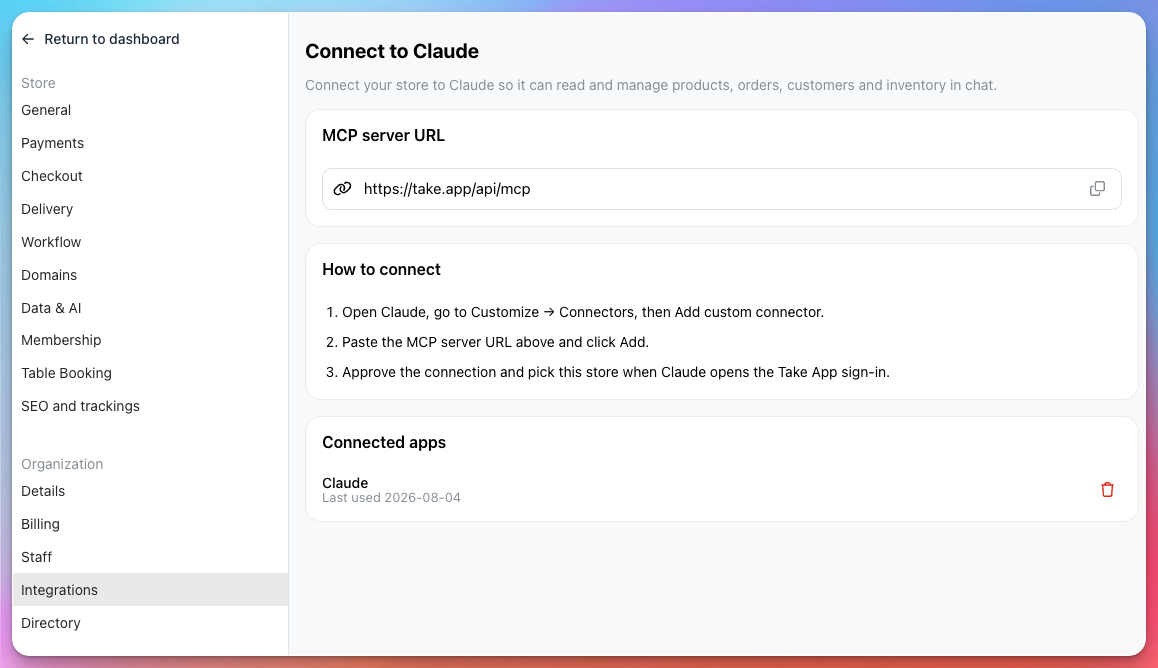
- In Take App, go to Settings > Integrations > MCP and copy the MCP server URL (
https://take.app/api/mcp). - Open Claude, go to Customize > Connectors, then Add custom connector.
- Paste the MCP server URL and click Add.
- Approve the connection and pick this store when Claude opens the Take App sign-in.
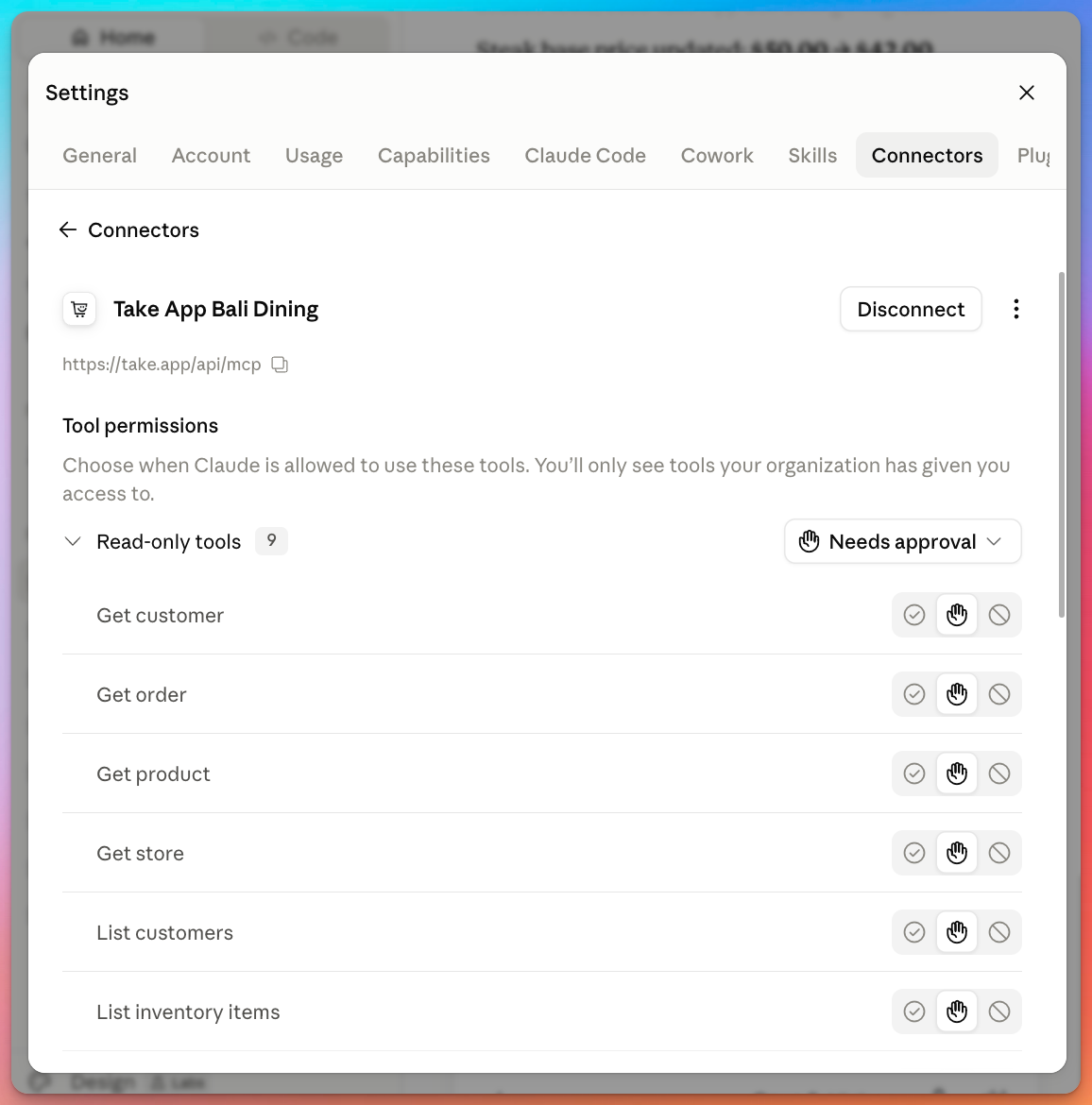
Once connected, Claude asks for approval before it runs your store's tools. You can choose when Claude is allowed to use each tool from Claude's connector settings — for example, keep read-only tools like Get product, Get order, List customers, and List inventory items set to Needs approval.
Connect ChatGPT
In Take App, go to Settings > Integrations > MCP and open the ChatGPT tab. Copy the same MCP server URL and add it as a custom connector in ChatGPT, following ChatGPT's connector steps.
Import products with Claude or ChatGPT
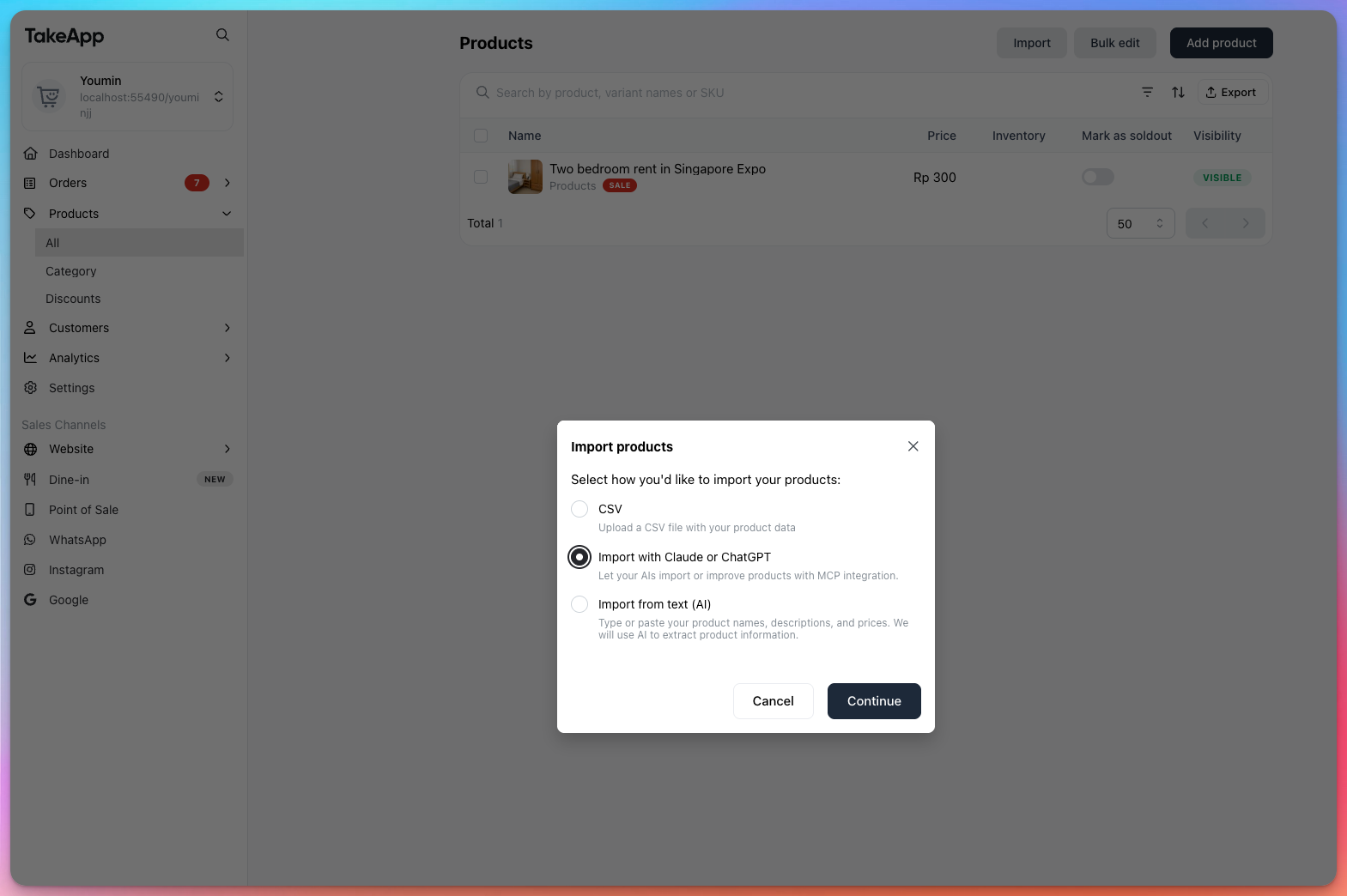
From the Products page, click Import and choose Import with Claude or ChatGPT. Then ask Claude or ChatGPT to import or improve your products through the MCP connection.
If you manage more than one store, make sure you pick the correct store when Claude opens the Take App sign-in, so the AI reads and edits the store you intend.