Down Payment Settings
-
Go to Settings > Checkout
-
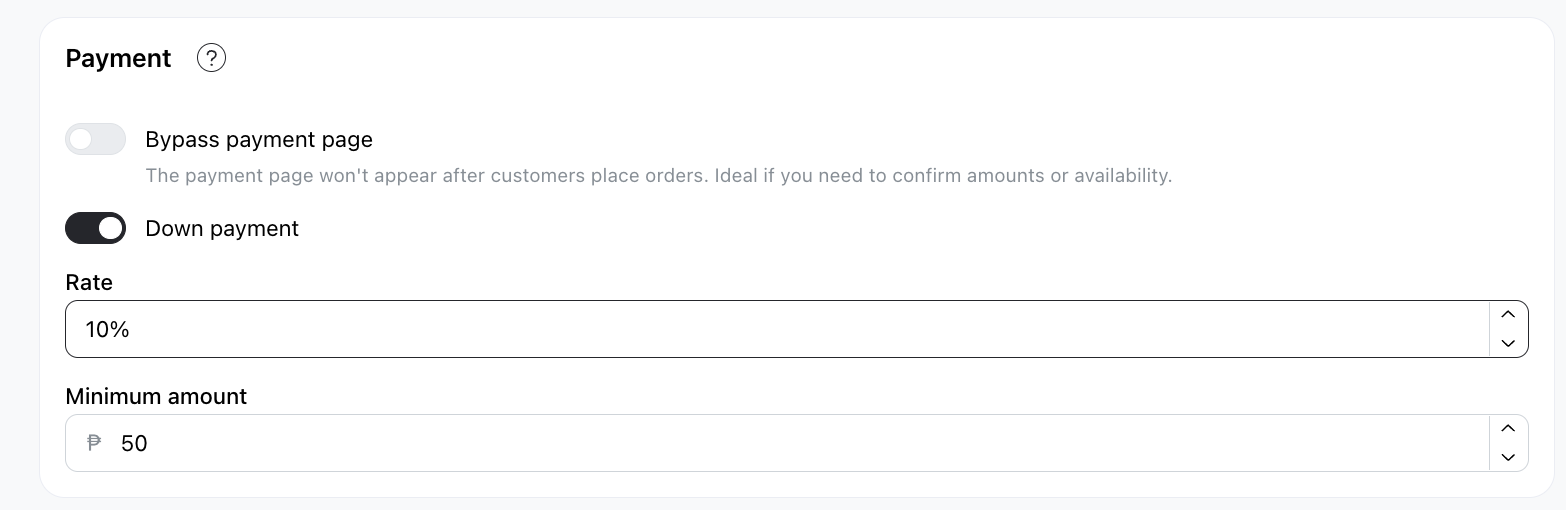
Turn on the Down Payment switch to enable it.
-
You can then specify the percentage, which is how much your customers can pay each time they encounter the pay page.
-
You can also specify the minimum amount required for the down payment.
Down Payment in Pay Page
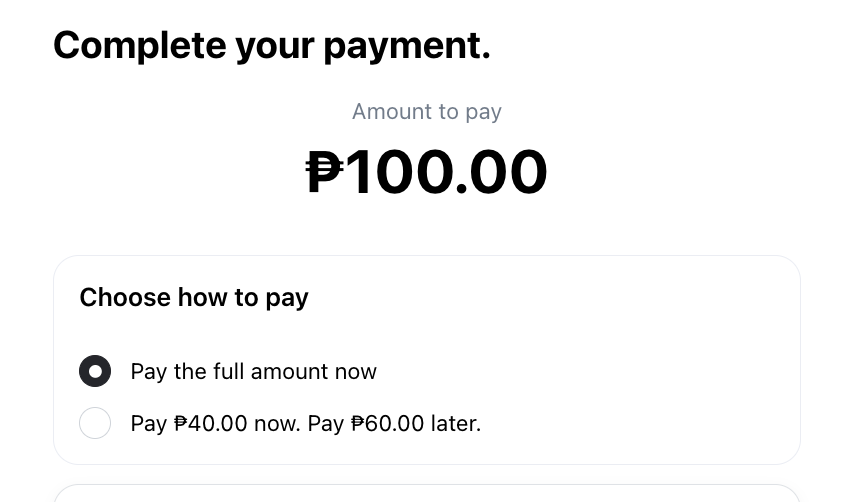
- This is how the down payment page appears when customers pay for their items.
- Normally, they can choose between paying the full amount or paying a downpayment percentage.
- In the above example, P40 is shown because 10% of 100 is only P10, but the minimum amount is P40.
Down Payment at work
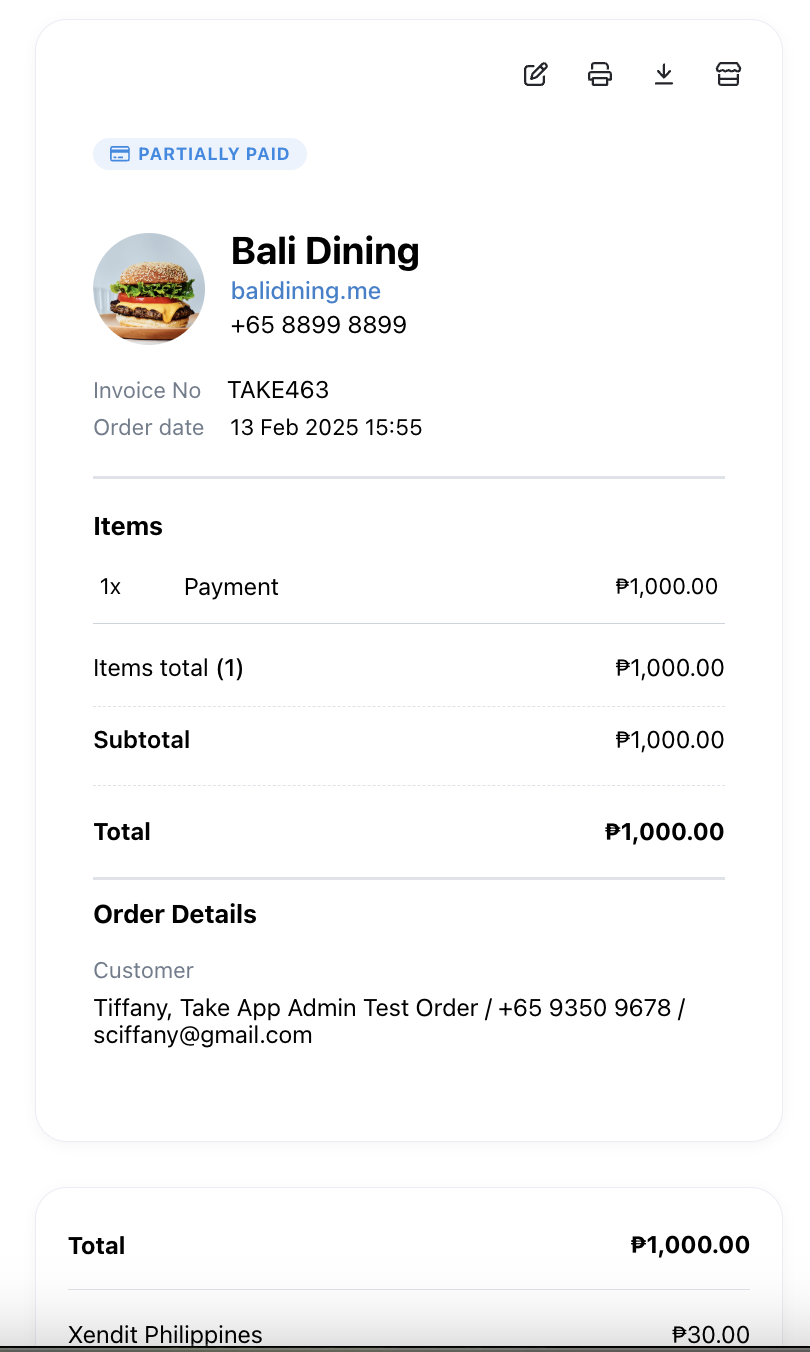
- Down payment works best with Automated payments
- After an automated payment is initiated, the receipt will turn partially paid. The invoice will also indicate the paid amounts at the bottom of the receipt.
After Down Payment
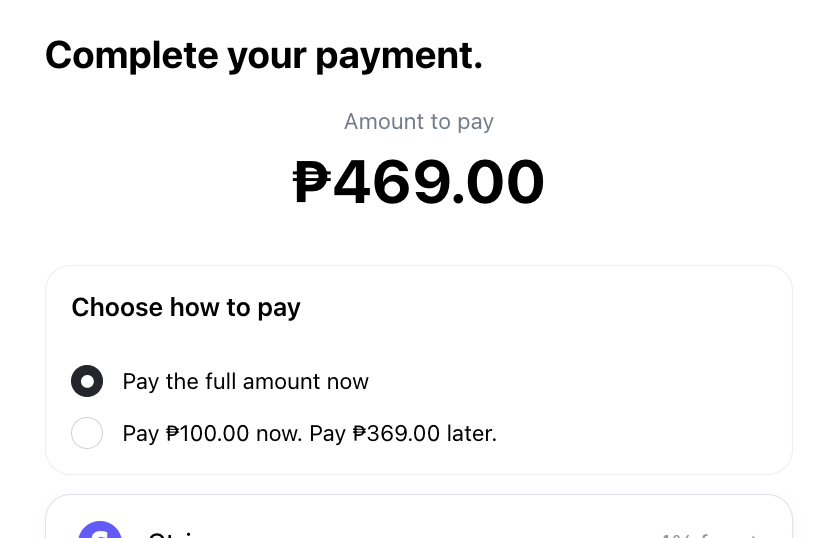
- Once a customer finishes paying for his order partially, he still has the option of paying multiple rounds partially or paying directly in full.
Multiple Down Payments
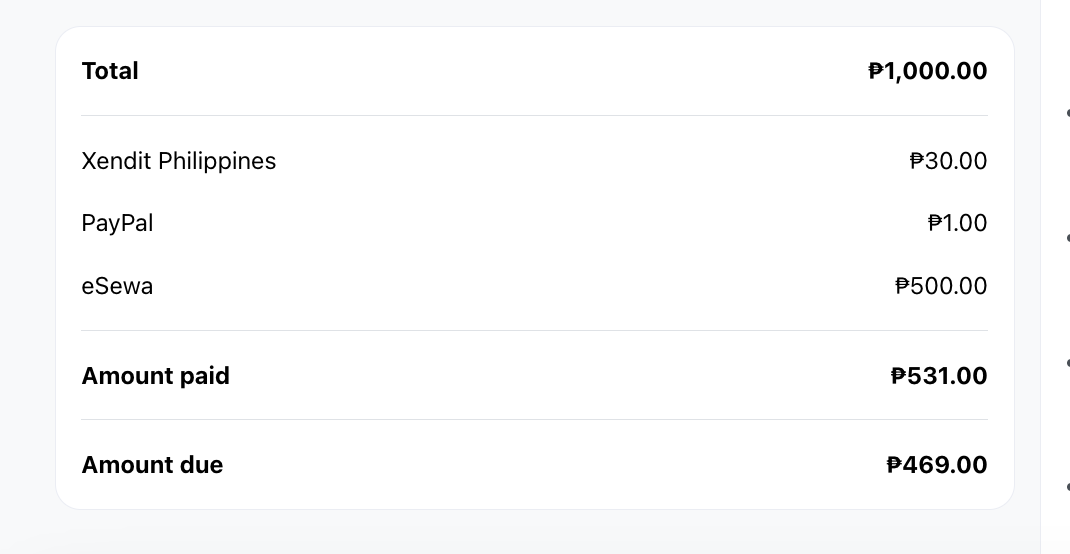
- A customer can keep paying in down payments, until the receipt is fully paid for.
Down Payments and Manual Payment
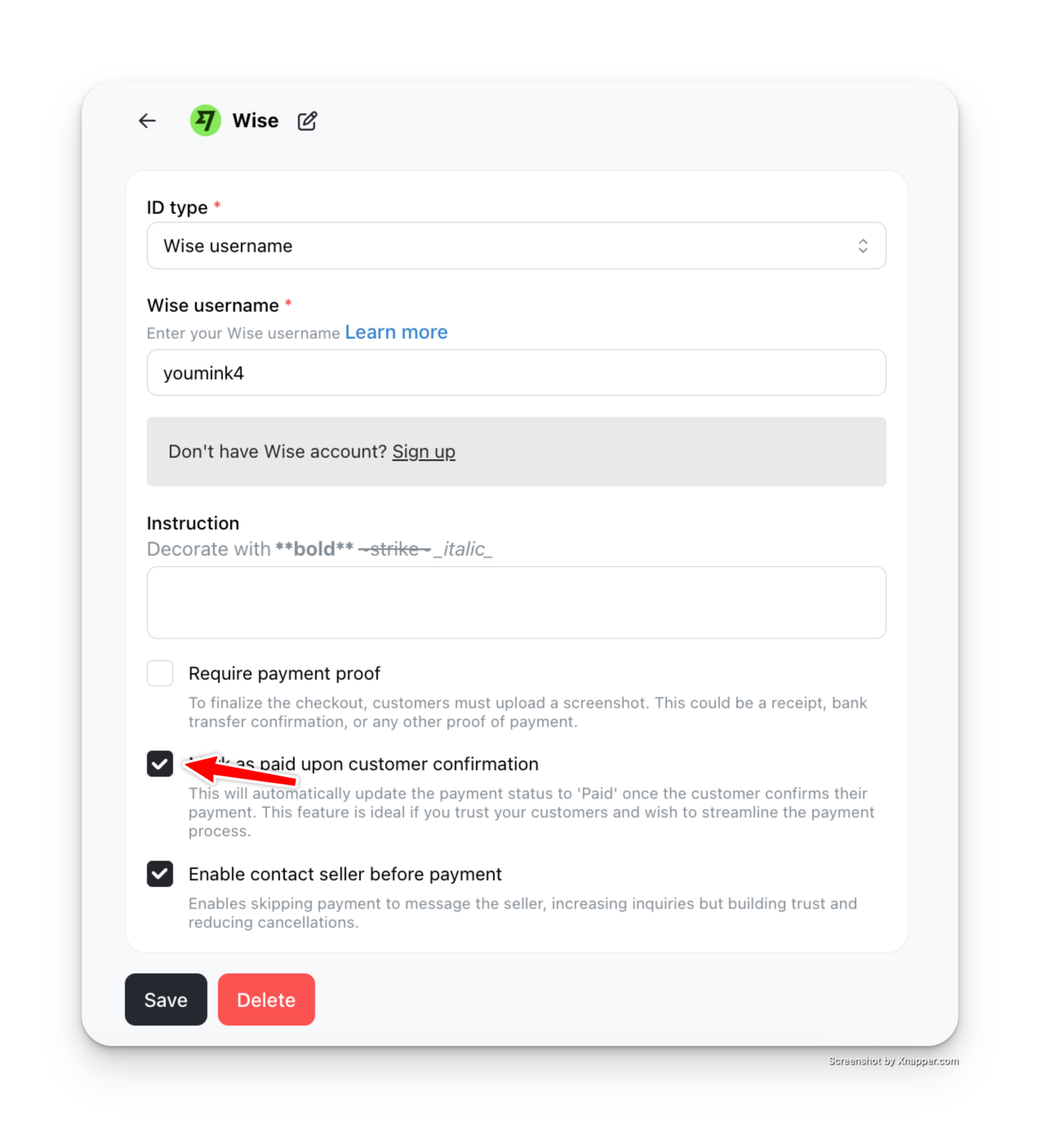
- Due to the nature of manual payments being Manually Confirmed, it is not possible to manually confirm just a partial payment. The best setting is to use Partial Payment with manual payments is to use the "Mark as Paid upon customer confirmation" in Payment page